

Documentation Index
Fetch the complete documentation index at: https://polar.sh/docs/llms.txt
Use this file to discover all available pages before exploring further.
Currently, customizing the products order in checkout is only supported via the APIs.
Create Organization Access Token and Product IDs
Create a New Token
Create a new organization token by following our Organization Access Tokens guide.
Save your Access Token
After creating your access token, you will be able to view it. Please copy and save your access token.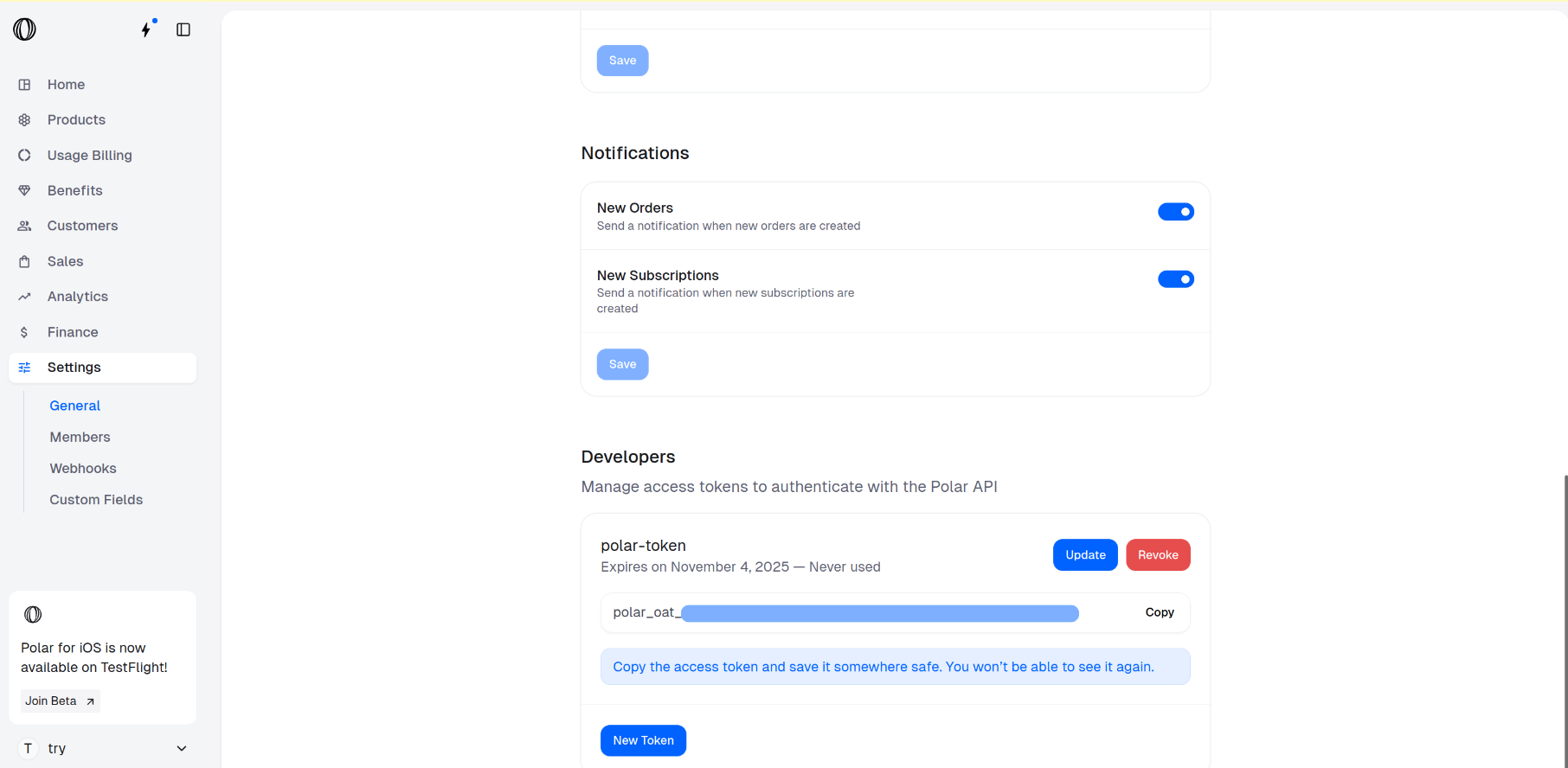
Go to the Products Catalogue
In the Polar dashboard sidebar, navigate to Products > Catalogue for your organization.
You can also go directly to 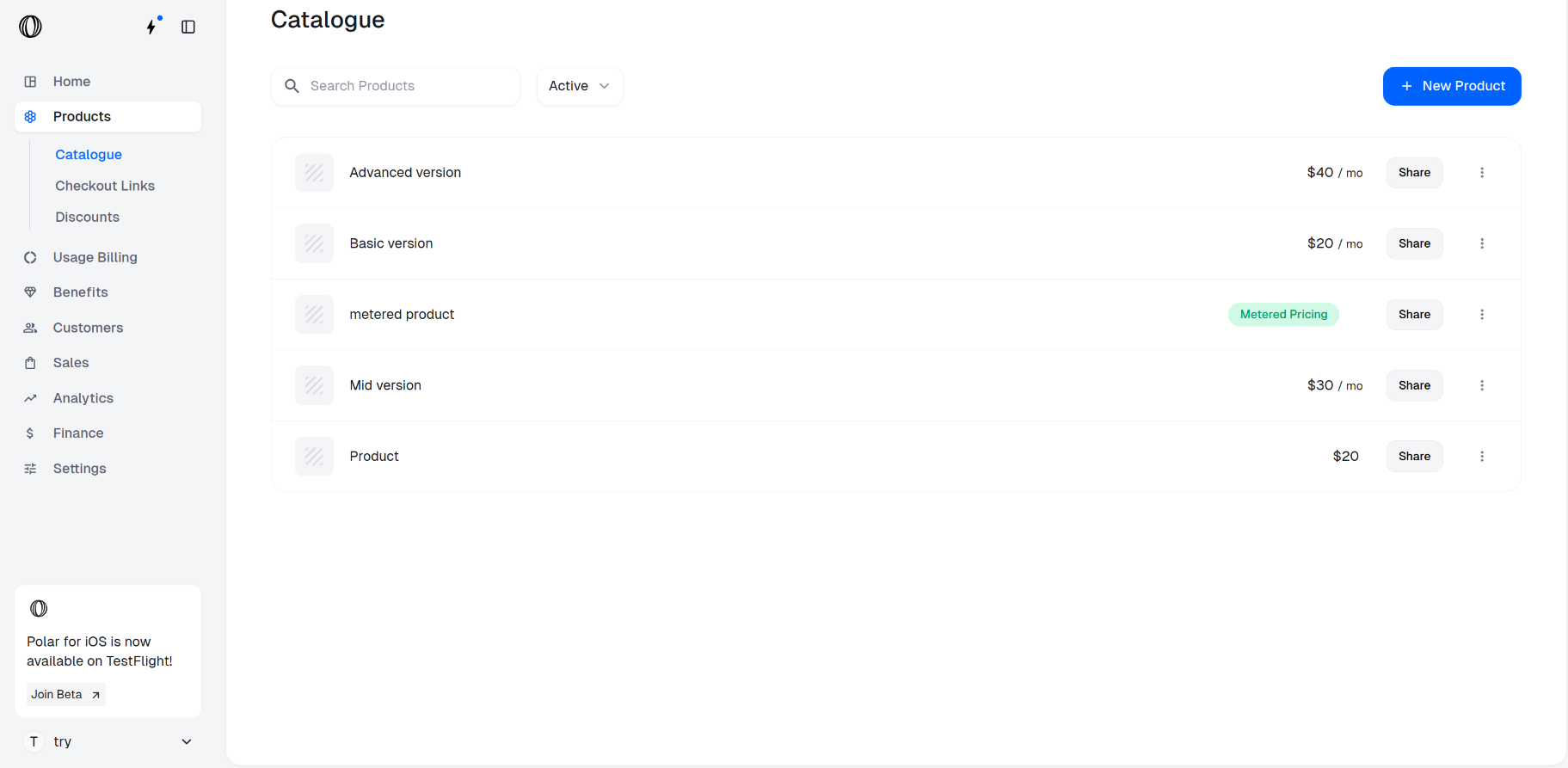
https://polar.sh/dashboard/${org_slug}/products.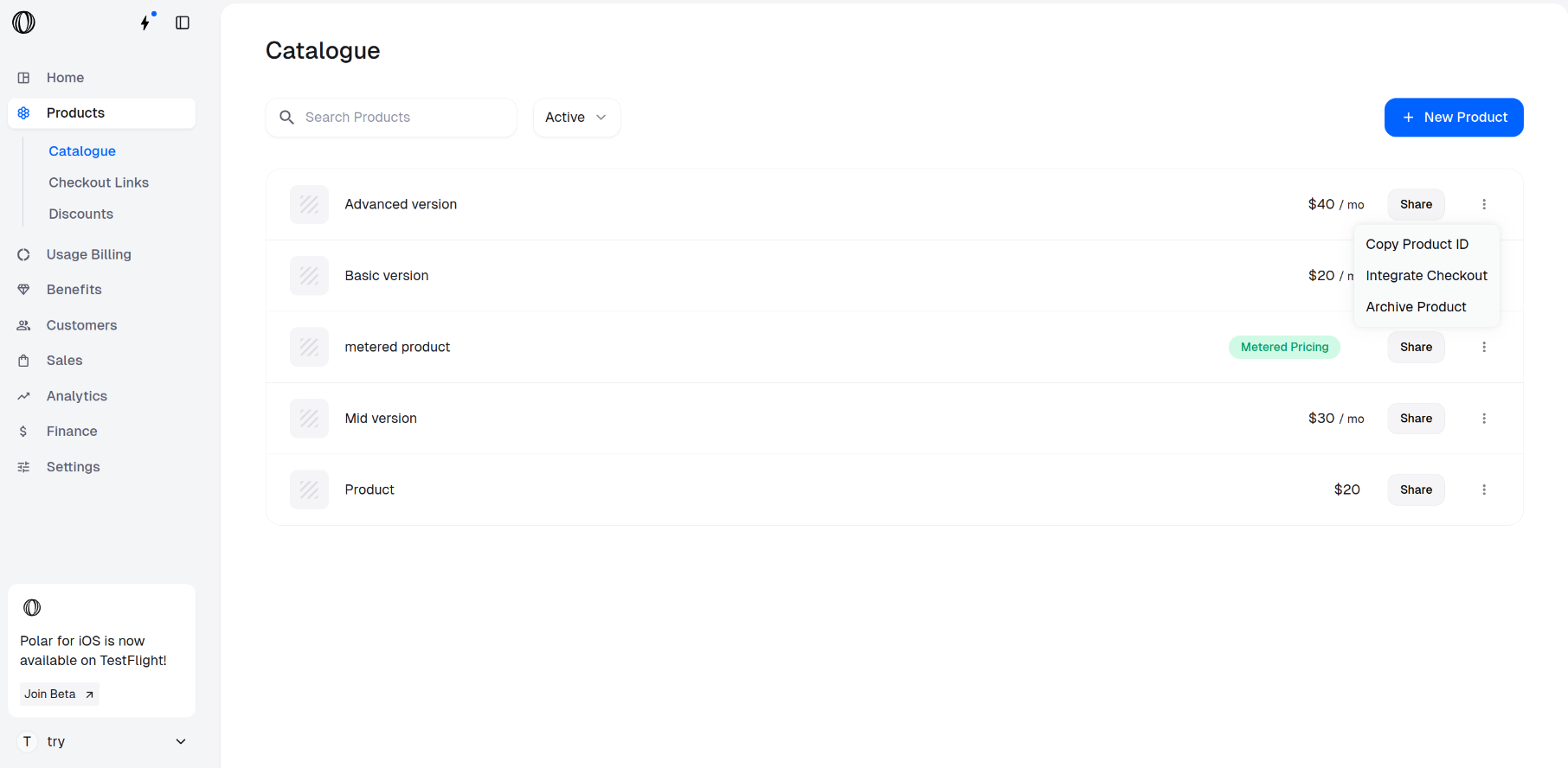
Reordering Products In Checkout Links API
Create a Checkout Link using the API
Open your terminal and paste the following curl command to make an API call for creating a checkout link.
Be sure to replace:Find all the available parameters along with the description in the Create Checkout Link API.
- <YOUR_ACCESS_TOKEN> with your actual access token.
Make sure your token has the
checkout_links:write scope enabled to use Create Checkout Link API.- <PRODUCT_ID_1>, <PRODUCT_ID_2>, etc., with the product IDs in the order you want them to appear in the checkout.
Terminal
Open the Checkout Link URL
The curl command returns a JSON. Access the checkout link URL from the It looks like below: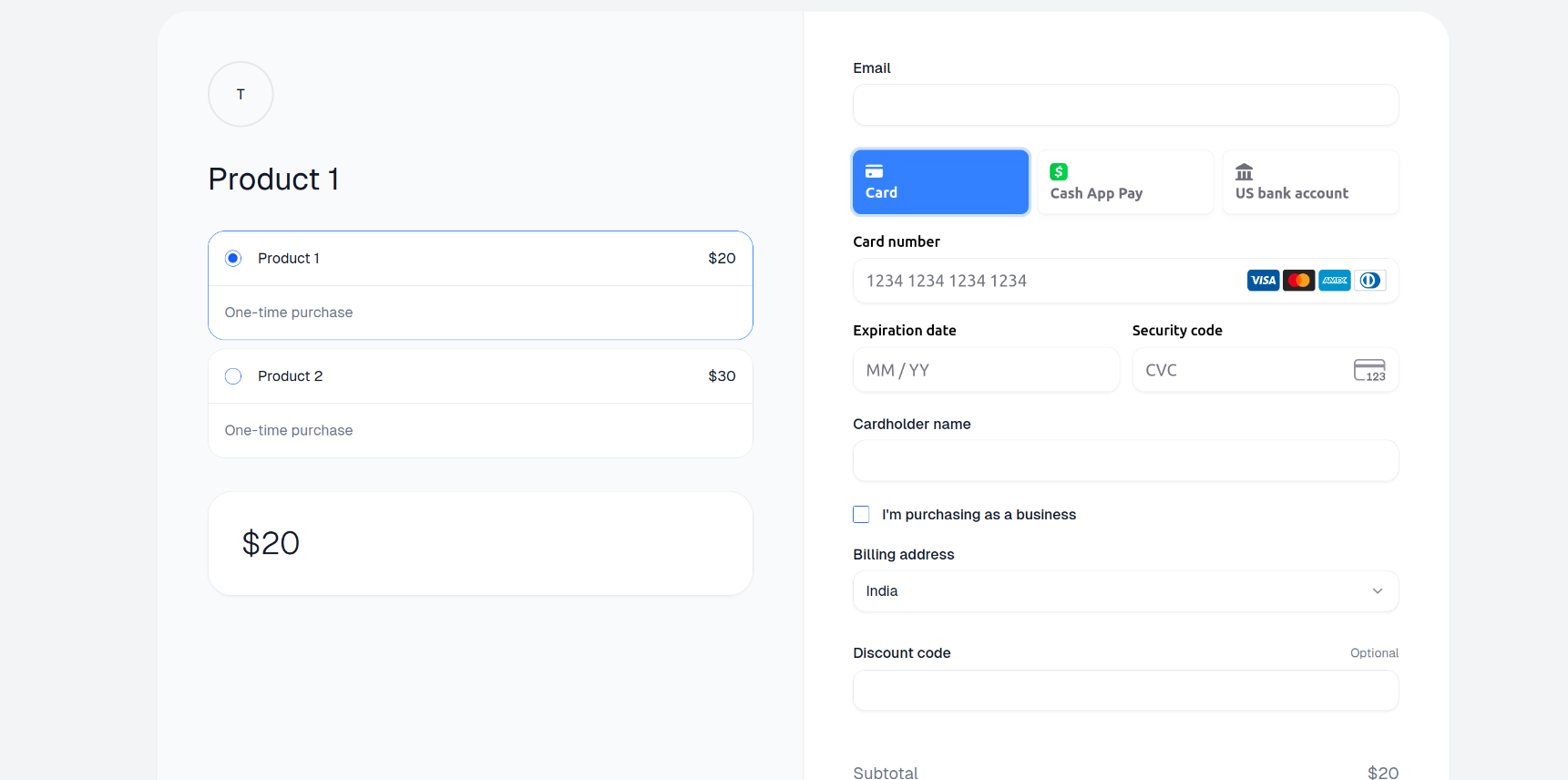
“url” key of the JSON and open it.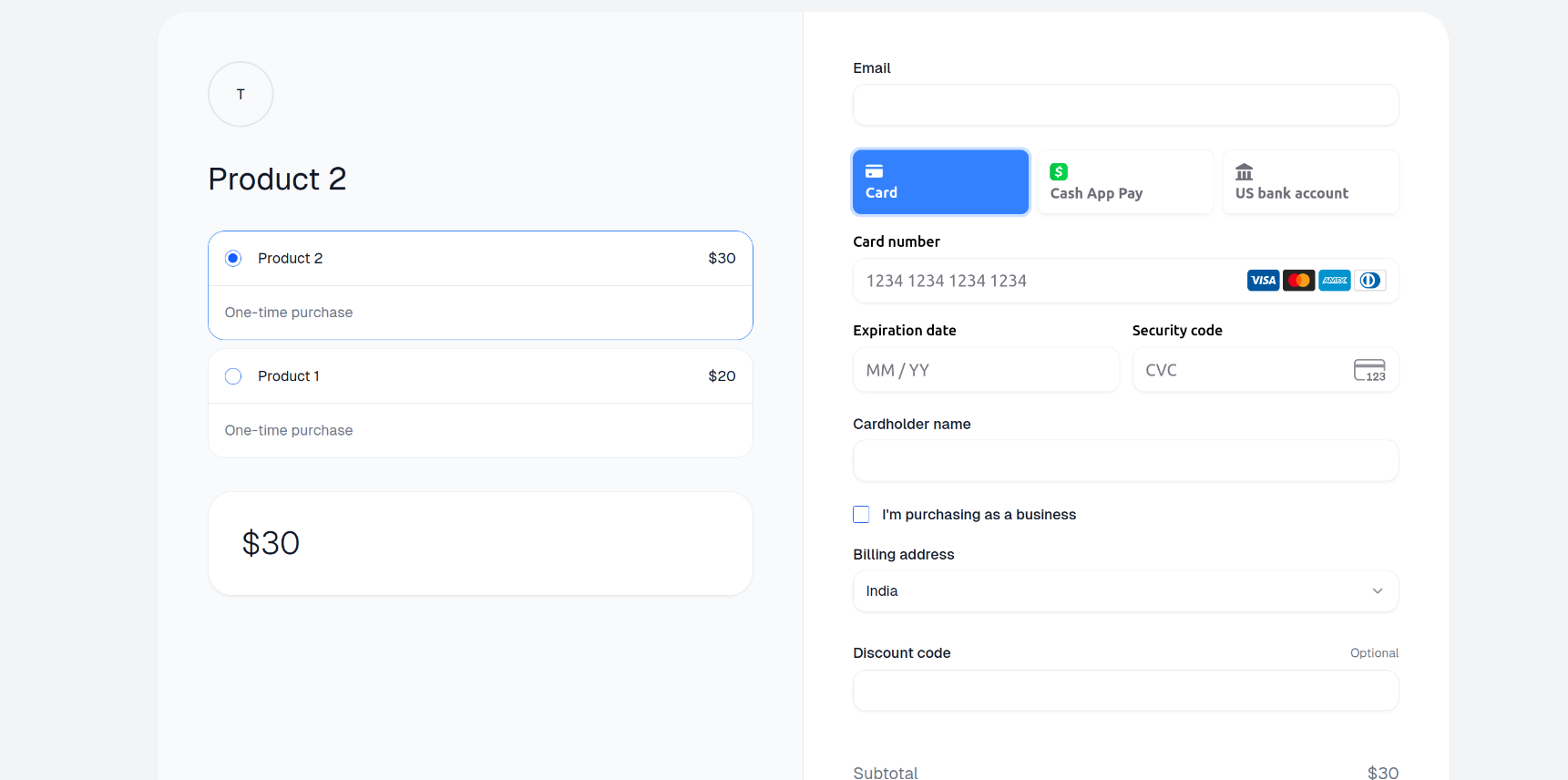
Reordering Products In Checkout Session API
Create a Checkout Session using the API
Open your terminal and paste the following curl command to make an API call for creating a checkout session.
Be sure to replace:Find all the available parameters along with the description in the Create Checkout Session API.
- <YOUR_ACCESS_TOKEN> with your actual access token.
Make sure your token has the
checkouts:write scope enabled to use Create Checkout Session API.- <PRODUCT_ID_1>, <PRODUCT_ID_2>, etc., with the product IDs in the order you want them to appear in the checkout.
Terminal
Open the Checkout Session URL
The curl command returns a JSON. Access the checkout session URL from the It looks like below:
“url” key of the JSON and open it.